Post a shipment
Describe what you are sending, set the pickup and delivery points, add photos and publish it so drivers can start bidding.
- 1Step 1
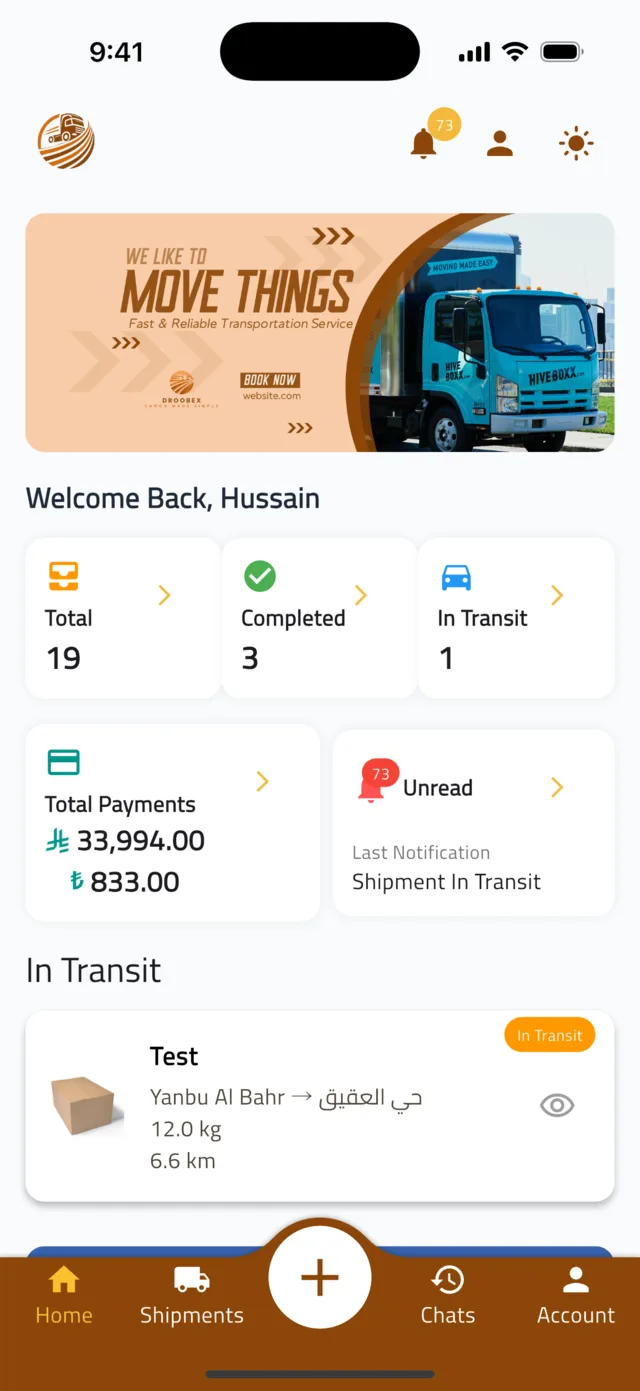
Start a new shipment
Tap the round + button in the middle of the bottom bar. The Create Shipment form has five short pages; use Next and Back at the bottom to move between them.
- 2Step 2
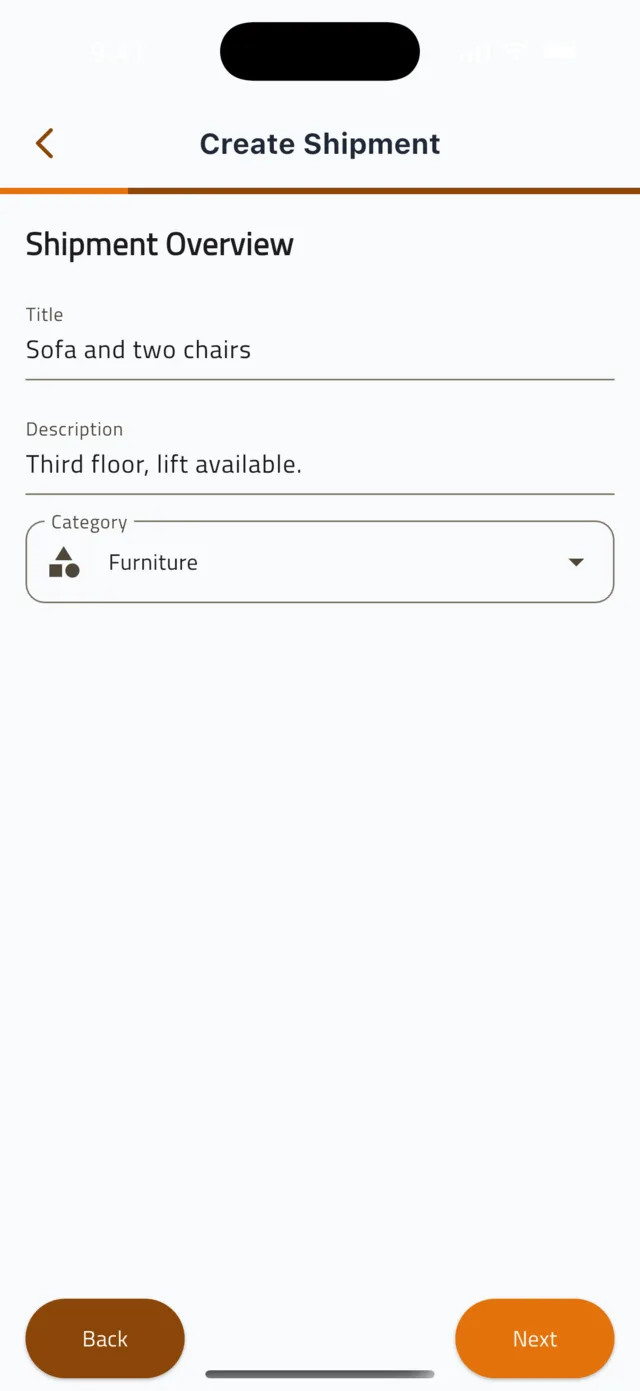
Page 1 — Shipment Overview
Give the shipment a short Title (for example "Sofa and two chairs") and a Description with anything the driver should know. Tap the Category field, then pick the closest match from the Select Category list — General Cargo, Fragile Items, Electronics, Furniture, Documents and more. Tap Next.
Tip: The category matters: it tells drivers what kind of vehicle and handling the job needs, and the list shows the pricing it adds — Furniture +25%, Electronics +20%, Fragile Items +15%.
- 3Step 3
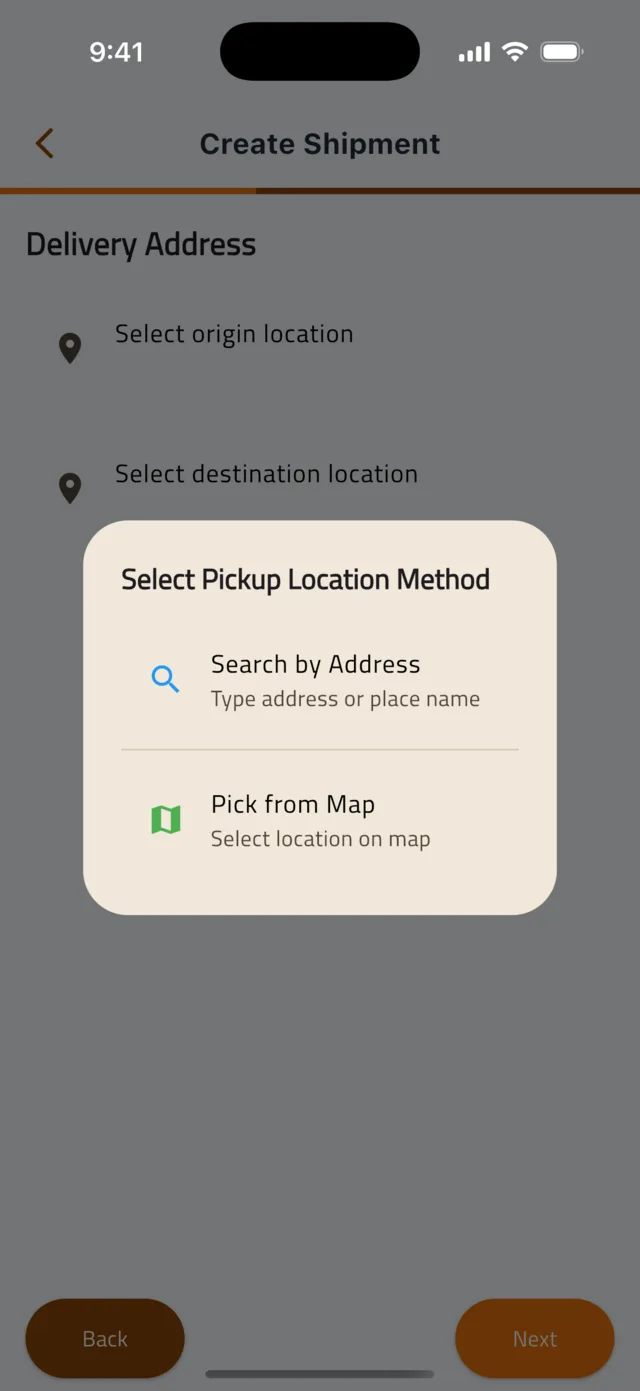
Page 2 — Delivery Address
Tap Select origin location. In the Select Pickup Location Method sheet choose Search by Address to type a street or place name, or Pick from Map to drop a pin. Then tap Select destination location and do the same. A green message — Pickup location set successfully, then Delivery location set successfully — confirms each point, and the full address replaces the placeholder. Tap Next.
Tip: The more exact the two points, the more accurate the drivers' bids. Add the floor or gate in the Description if it matters.
- 4Step 4
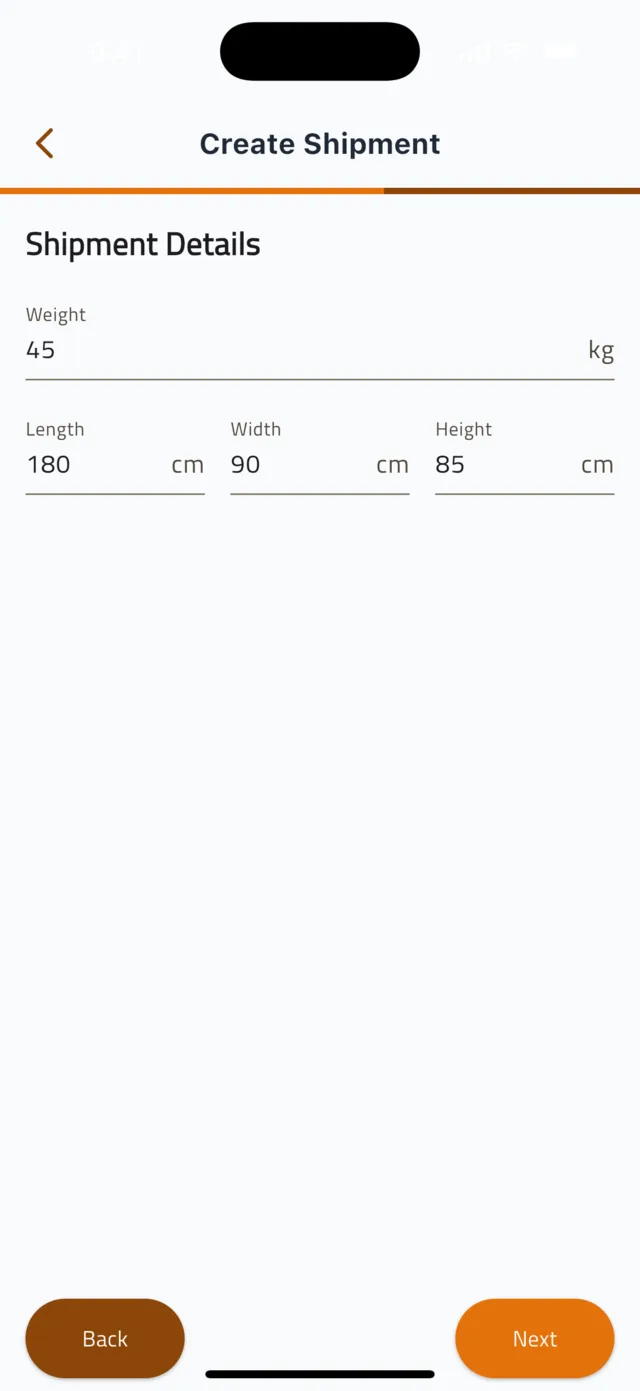
Page 3 — Shipment Details
Enter the Weight in kilograms, then the Length, Width and Height in centimetres. Approximate values are fine, but do not guess wildly — drivers price the job from them. Tap Next.
- 5Step 5
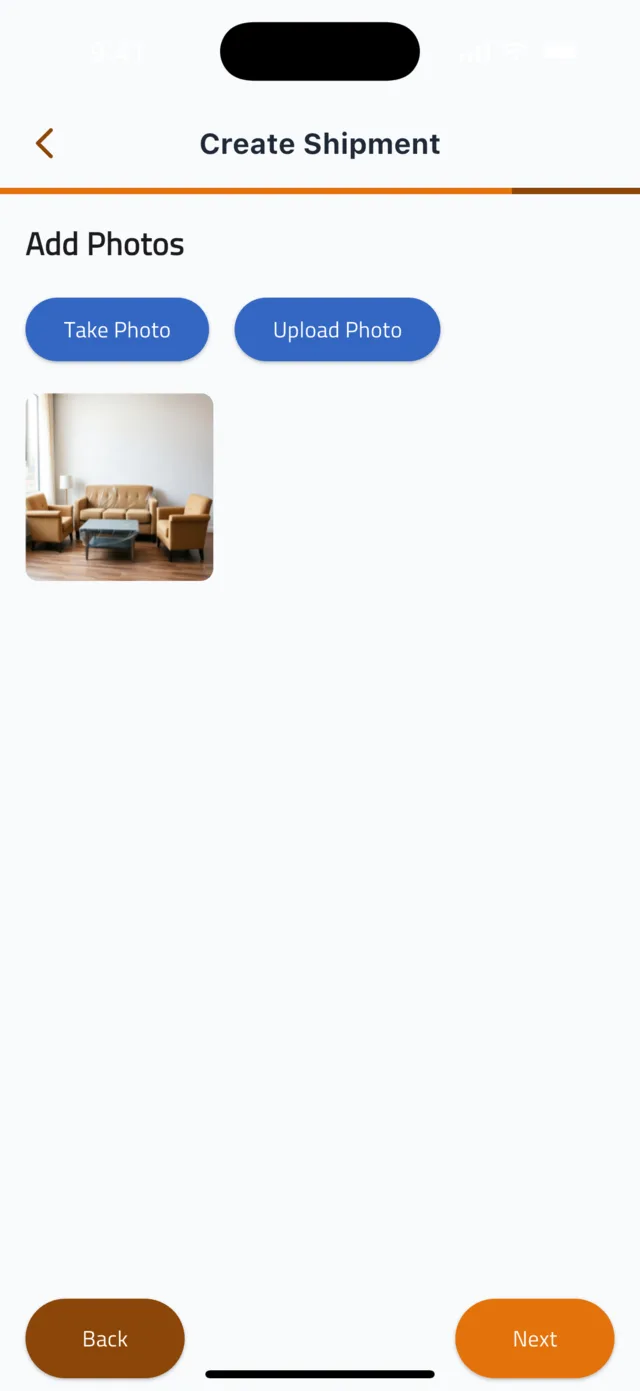
Page 4 — Add Photos
Tap Take Photo or Upload Photo and add at least one clear picture of the goods; two or three from different angles is ideal. Photos let drivers price the job properly and cut down on questions. Tap Next.
- 6Step 6
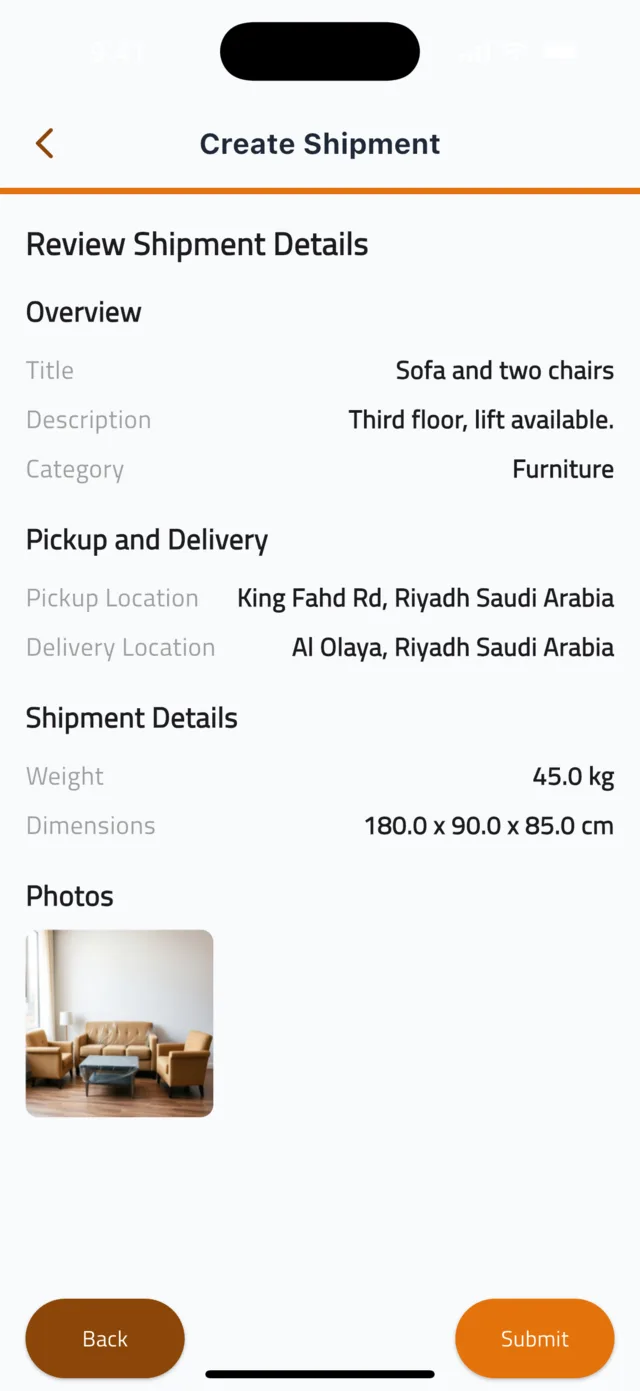
Page 5 — Review Shipment Details
Check the summary: overview, both addresses, weight and dimensions, and your photos. If anything is wrong, tap Back and fix it. Then tap Submit. You return to the Shipments tab with the message Shipment created successfully. The shipment is saved with status Created — drivers cannot see it yet.
- 7Step 7
Publish to receive bids
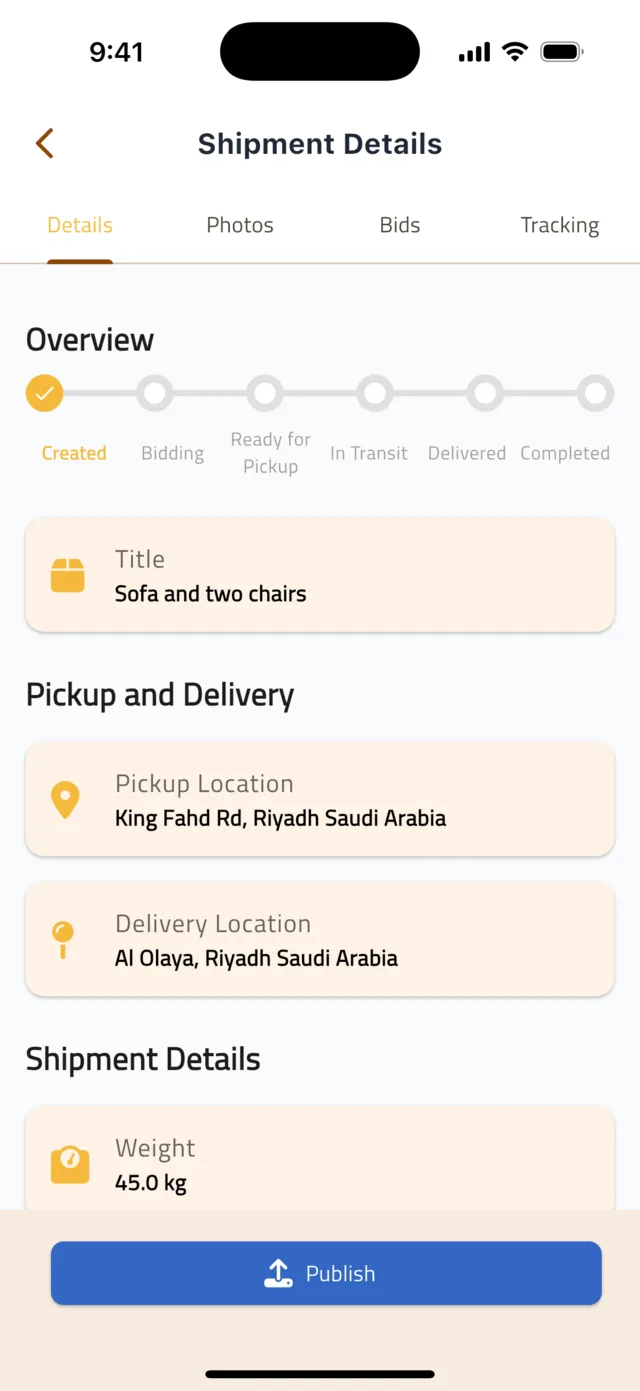
Open the shipment from the Shipments tab by tapping its photo, then tap Publish at the bottom of the Details tab. The status moves from Created to Bidding on the progress bar and drivers can now see it and place offers. Need to change something? Tap Unpublish, edit the shipment, then publish again.
Tip: A shipment that stays in Created receives no bids. Always publish it.
Common questions
Where do I set the price?▼
You don't. Drivers compete by bidding on your shipment, and each new bid has to beat the current lowest one. You choose the offer you like best — see the guide Compare bids and choose a driver.
Can I reuse a previous shipment?▼
Yes. Tap the arrow on a card in the Shipments tab to expand it — three icons appear: copy (Duplicate Shipment), pencil (edit) and bin (delete). Tap copy and the form opens pre-filled; change what you need and submit.
Can I edit or delete a shipment?▼
Use the pencil or bin icon on the expanded shipment card. Do this only while the status is Created or Bidding. Once a bid is approved and paid, a driver is already counting on the job — talk to them through Contact Driver, or reach us through Help & Support in the Account tab.
Still stuck?
Open the Account tab → Help & Support inside the app to chat with us, or visit the Support Center.
Support CenterGet Droobex Shipper