Track your shipment, confirm delivery and rate the driver
Follow the status, chat with the driver, watch them on the map, confirm you received the goods, leave a review and find your payment history.
- 1Step 1
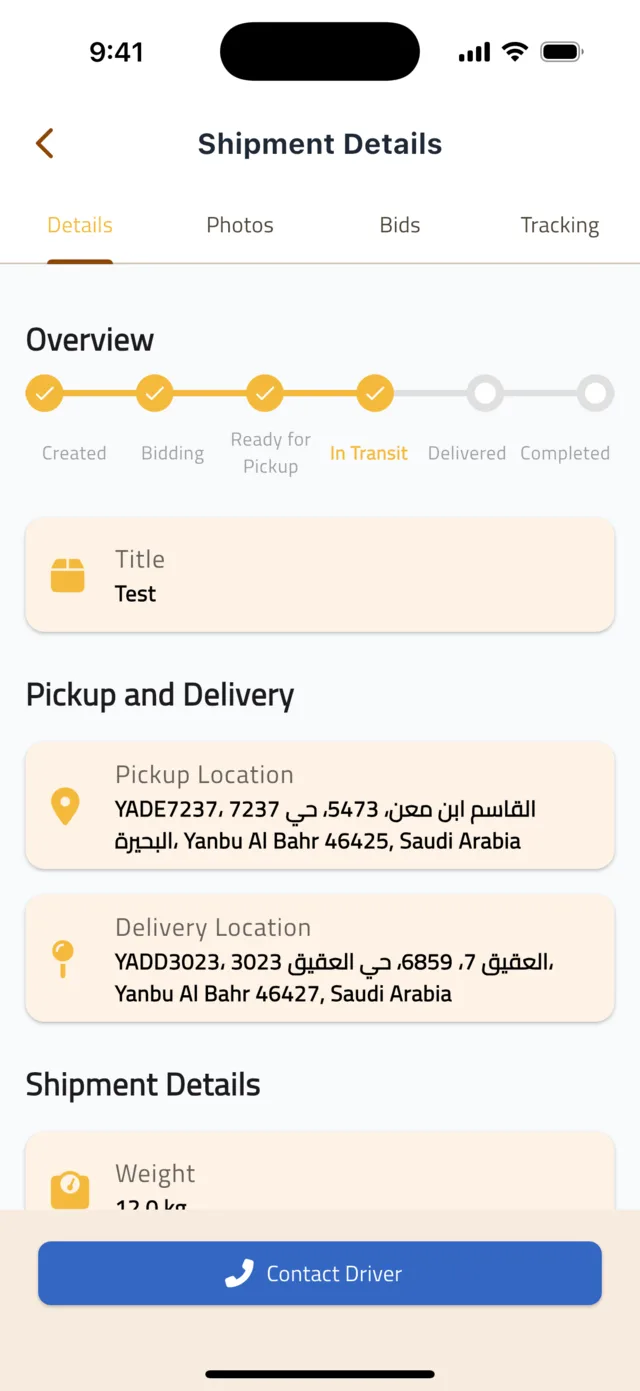
Follow the status
Open the shipment from the Shipments tab. The Overview bar at the top of the Details tab shows where it is: Created → Bidding → Ready for Pickup → In Transit → Delivered → Completed. You get a notification at every change; the bell icon at the top of the Home tab lists them all.
- 2Step 2
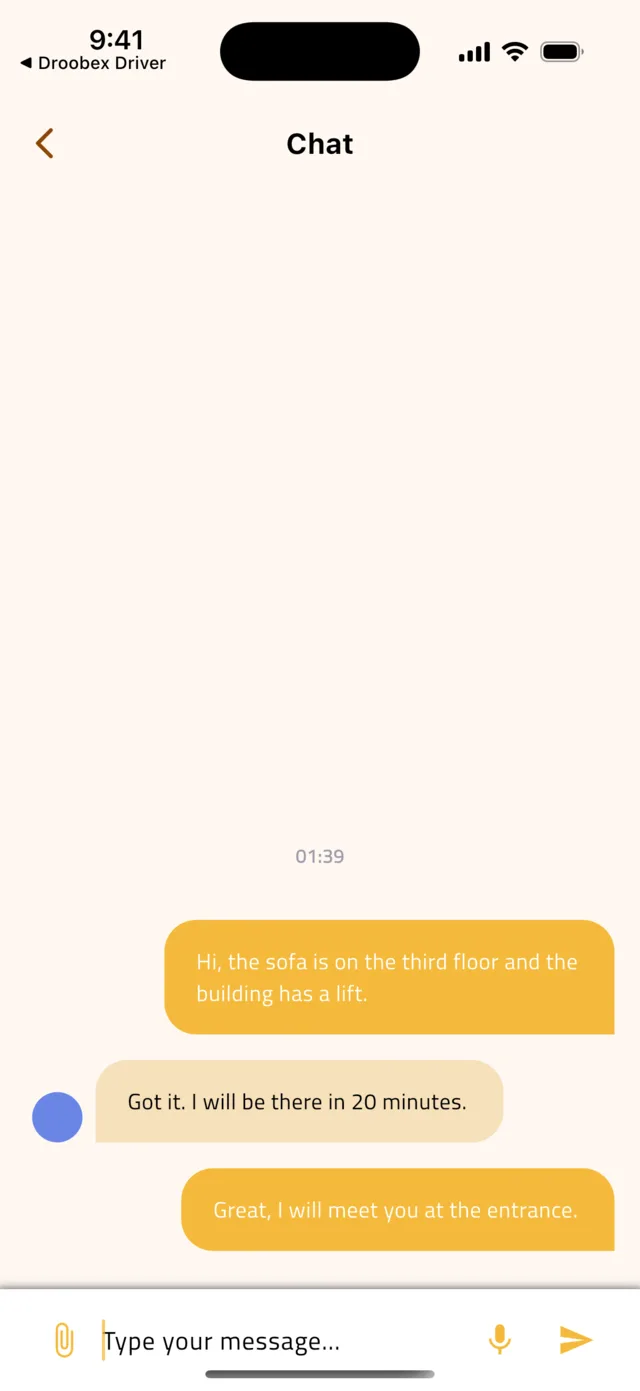
Chat with your driver
From Ready for Pickup onwards a Contact Driver button appears at the bottom of the shipment. Tap it to open the chat and agree the pickup time, give directions or answer the driver's questions. You can send text, photos and voice messages.
Tip: Be ready at the pickup time you agreed. Waiting drivers are the most common reason a delivery runs late.
- 3Step 3
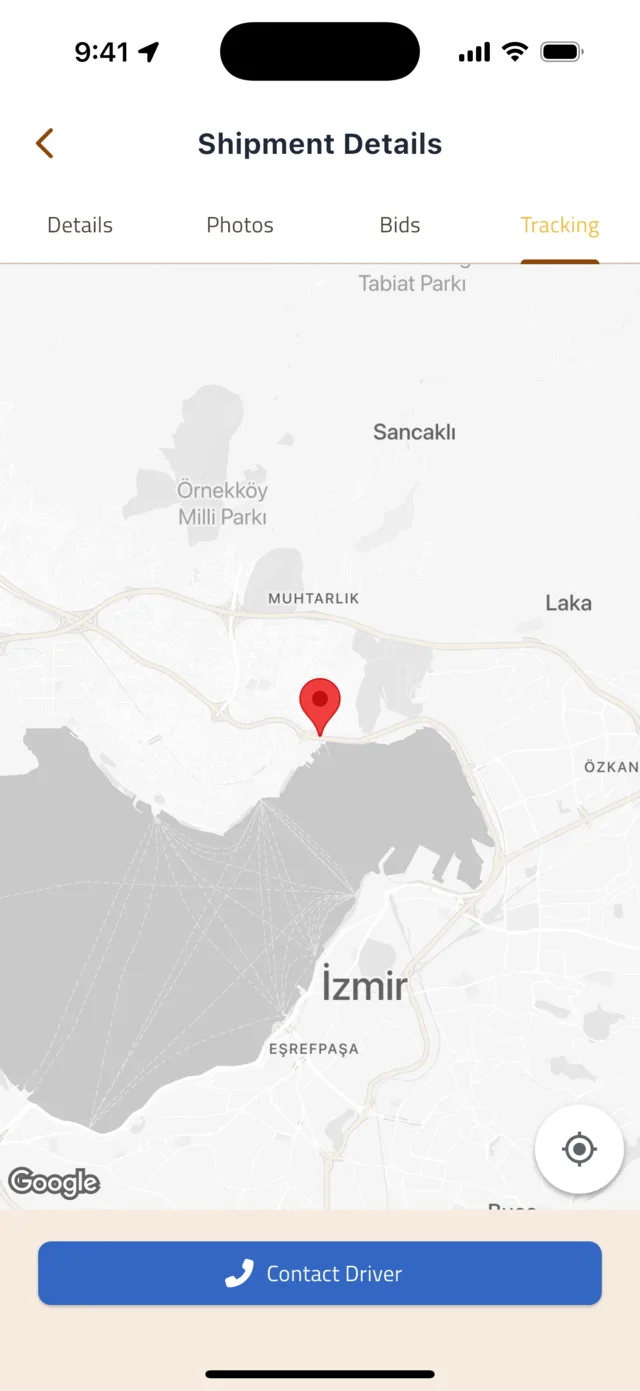
Watch the driver on the map
Once the driver has picked up the goods the status becomes In Transit. Open the Tracking tab inside the shipment to see the driver's current position on the map — it updates as they move.
- 4Step 4
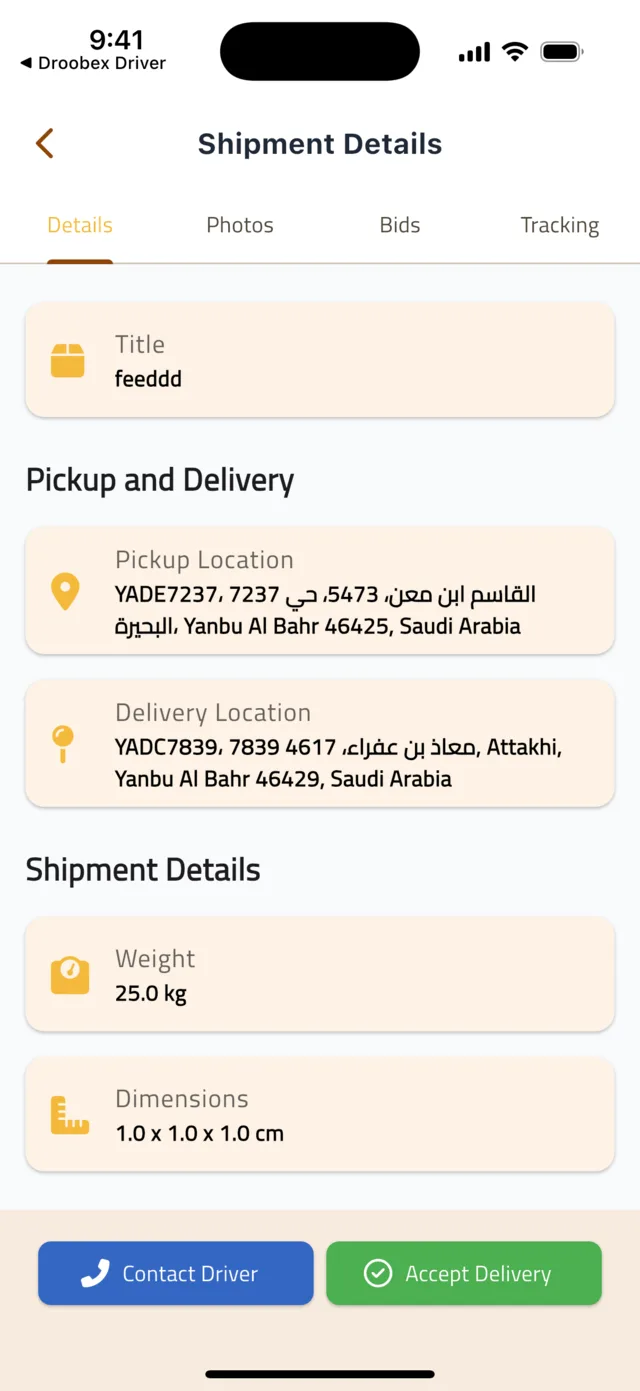
Confirm delivery
When the driver hands over the goods they mark the shipment Delivered. Check everything, then tap Accept Delivery. In the Confirm Delivery dialog tick I acknowledge the shipment has been delivered and tap Confirm. The status becomes Completed and the driver's payout is released.
Tip: Tap Accept Delivery only after you have received and checked the goods. If something is wrong, use Report an Issue instead — see the FAQ below.
- 5Step 5
Rate the driver
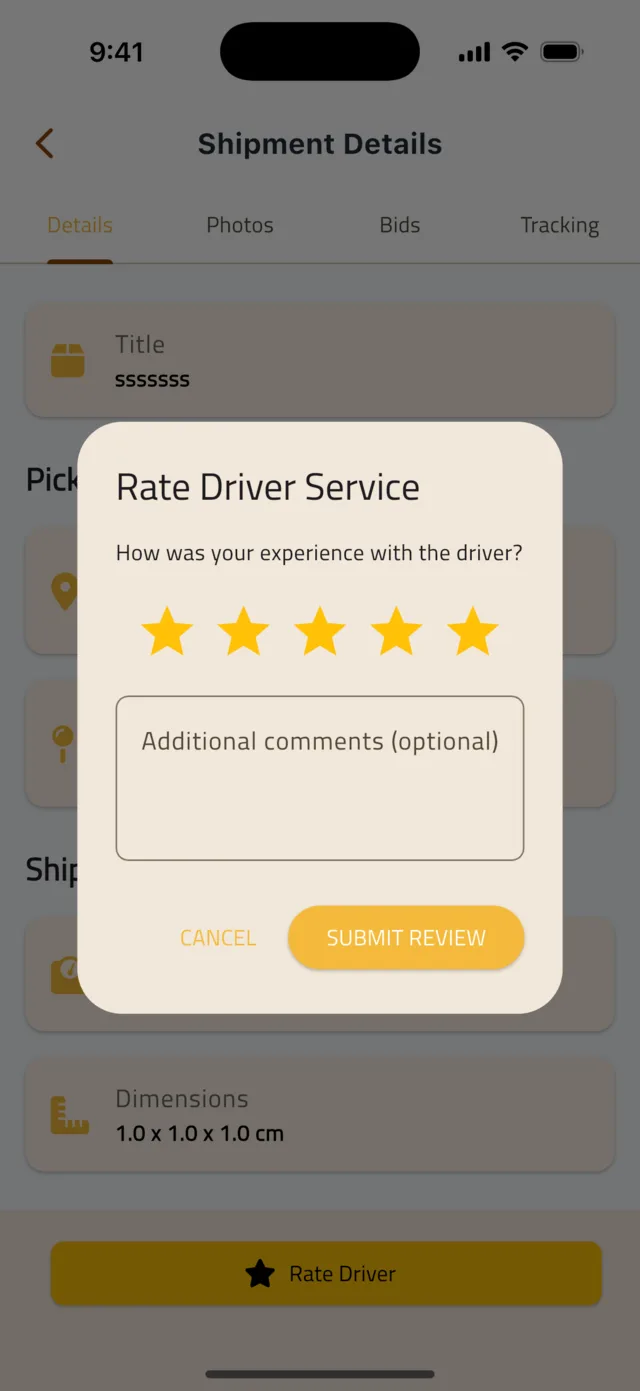
After confirming, tap Rate Driver. The Rate Driver Service dialog asks How was your experience with the driver? — tap 1 to 5 stars, add a comment in Additional comments (optional) if you like, and tap Submit Review. Your review appears on the driver's profile and helps other shippers choose well.
- 6Step 6
Find your payment history
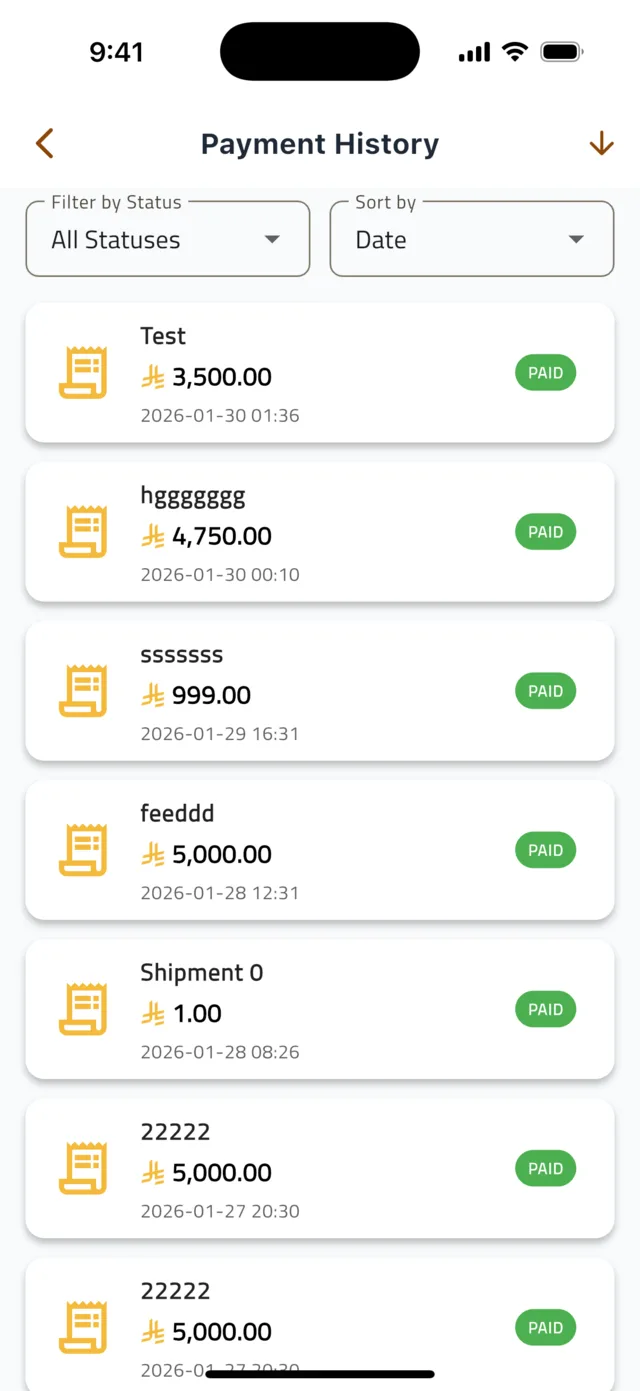
Open the Account tab and tap Payments, or tap the Total Payments card on the Home tab. The Payment History screen lists every payment with the shipment title, amount, date and status, and you can Filter by Status or Sort by date.
Common questions
There is a problem with my delivery.▼
Do not tap Accept Delivery. Open the shipment's Bids tab, tap the paid bid and then Report an Issue. Describe the problem and tap Contact Support — a support chat opens and our team takes over. Refunds are issued in cases of fraud, driver cancellation or platform errors.
I can't see the driver on the map.▼
The position is shared only while the status is In Transit and the driver's phone has location enabled. If it does not update, ask the driver through Contact Driver.
I forgot to rate the driver.▼
Open the completed shipment from the Shipments tab — the Rate Driver button stays there until you have left a review.
Still stuck?
Open the Account tab → Help & Support inside the app to chat with us, or visit the Support Center.
Support CenterGet Droobex Shipper